 Climbrk
HOW IT WORKS
Your menu.
A helpful first reply.
Start with the information you already share with guests. Check the answers, connect WhatsApp and keep your team in control.
SETUP, WITH A REVIEW BUILT IN
A photo is a start.
You make it yours.
Correct names, sizes, prices and hours before saving.
You review firstIllustrated setup example. Photos stay in memory during extraction and are not saved. Extracted text and drafts can be saved. Read the privacy policy.
WHAT YOU SEE
A place for
every enquiry.
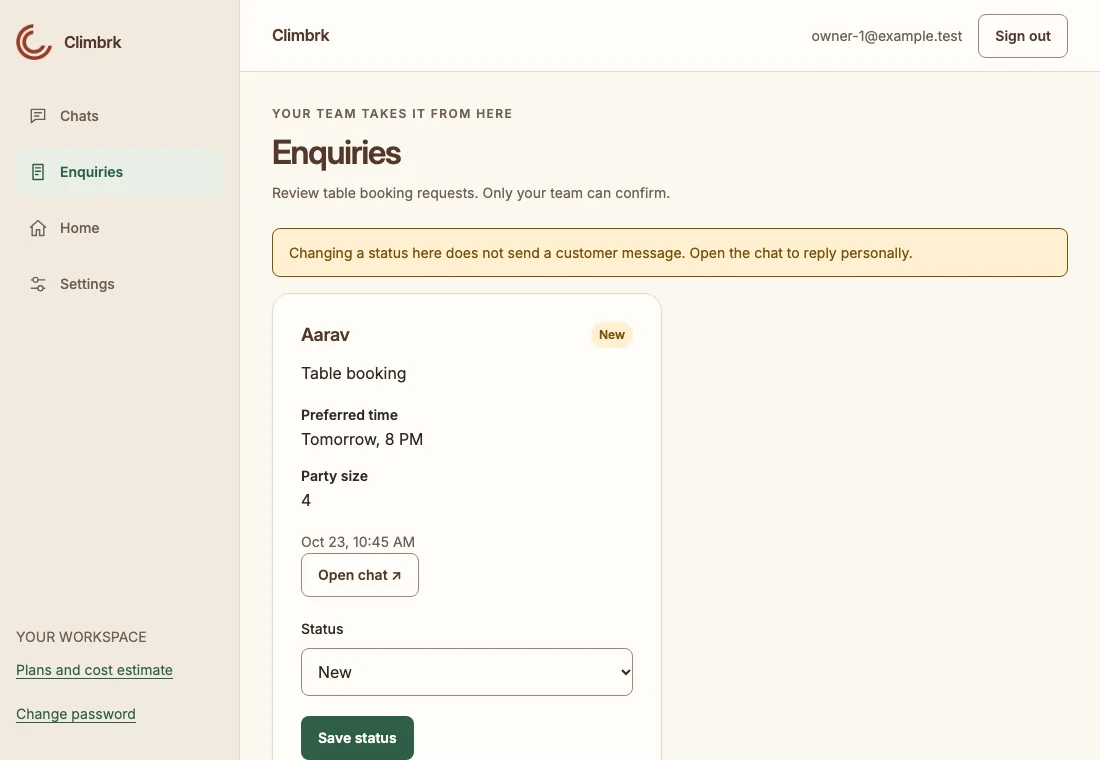
Read conversations, see handover reasons and review requests. An enquiry is a request for your team to confirm, not a guaranteed booking.
WHEN YOU STEP IN
Take over.
Make it personal.
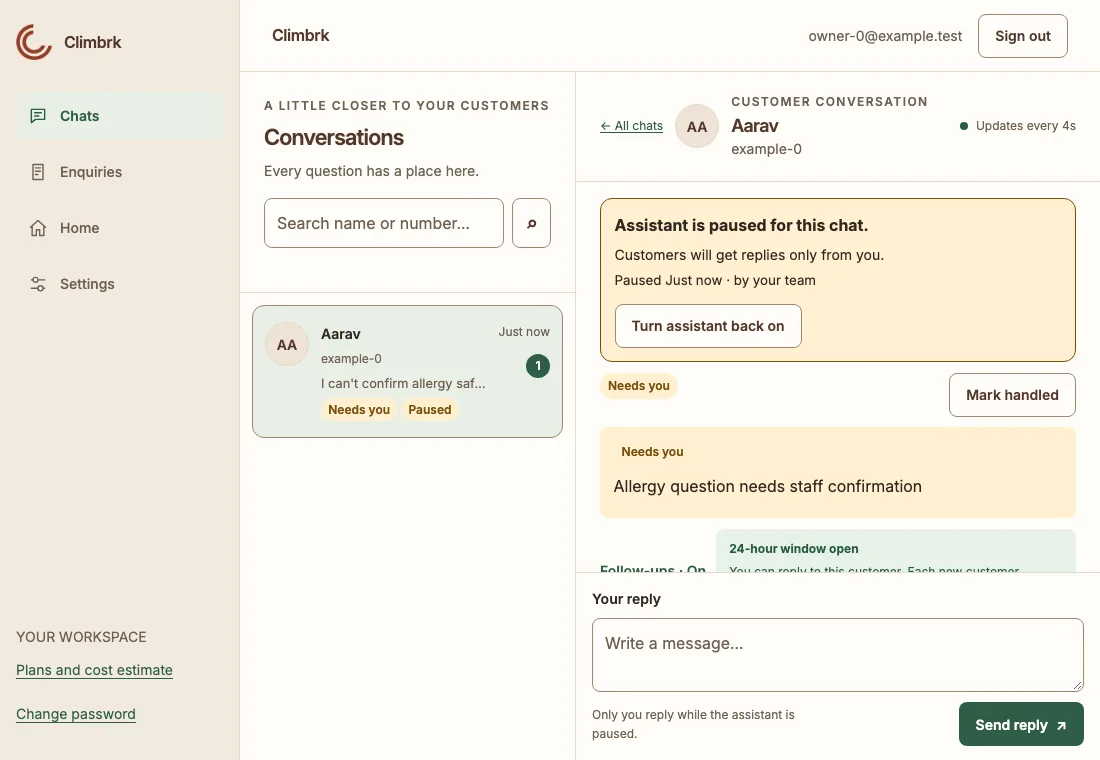
Pause the assistant before replying. It stays paused until you resume it. Missing business information can be flagged while the conversation continues; safety questions and requests for a person wait for staff.
WHAT YOUR CUSTOMER SEES
A clear answer.
Or a clear handover.
The first reply identifies the automated assistant. It uses your saved business facts and passes uncertain questions to staff. Replies can still be wrong; review the examples and keep your information current.
BEFORE YOU SWITCH ON
Connect through Meta.
Go live when ready.
- 01
Add your business details.
Create an account and verify your email. Add your hours, location and the details customers ask for.
- 02
Add your menu. Check the answers.
Start with a photo or type your details. Check the suggested prices, then try sample replies. The photo is not saved.
- 03
Connect. Then switch on.
Connect an eligible WhatsApp number through Meta. Review your setup and choose Go live when you are ready.
What you need for the connection
- A Facebook account with access to the right business portfolio.
- A website or public business page that accurately represents your business.
- A phone number not already registered with WhatsApp, with access to receive its verification code.
The current release supports the standard Cloud API connection flow. Existing-number migration and WhatsApp Business app coexistence are not supported. Eligibility, verification and permissions are controlled by Meta. Do not remove an existing WhatsApp account to try this flow.
Climbrk uses Meta’s authorization flow. You do not need to create your own developer app or paste an access token into our dashboard. Connection availability depends on the platform’s Meta approvals and configuration.